


Share:
Currently, Amazon Fire TV supports standard Android notifications through the Android Notifications API, which developers can use to send local notifications to customers that appear outside of your app's user interface. Nowadays, it is quite common practice for apps developers to send notifications to smartphone users to grab their attention.
Similarly, on Fire TV, notifications allow developers to reach out to your customers to encourage them to revisit your app. You can use notifications to inform your customers when there is a new feature, content, or a promotional campaign available in your app.
This blog post will walk you through several types of notifications and the customer experience, how to send a server message through Amazon Devices Messaging (ADM), and how to convert that message to local notifications on Fire TV through the Android Notification API.
Note: Please be aware that ADM is required to push messages from your back-end to Amazon Fire OS devices, including Fire TV and Fire tablet.
There are 3 types of local notifications supported on Fire TV:
1. Heads-up notifications
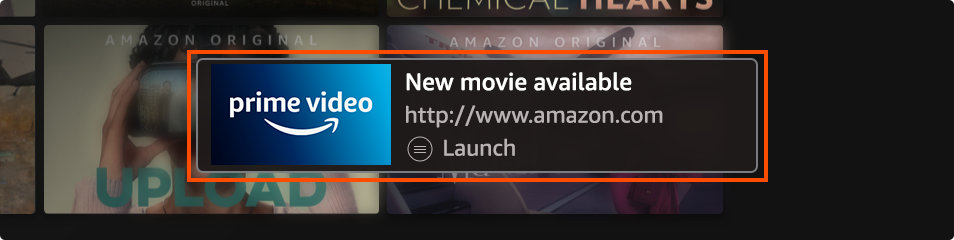
Fire TV by default sends notifications to customers when there is a new app or new update app available. You can also send heads-up notifications to the customer by using the Android notification API and specify the notification priority to high.
This is the method you need to invoke:
⎘ Copy code Copied to clipboard.setPriority(NotificationCompat.PRIORITY_HIGH)Fire TV displays Heads up Notifications slightly differently from standard Android. See below for the user experience for Heads-up notifications on Fire TV:

2. Standard notifications
Standard notifications will be sent when the developer did not specify the notification priority. Standard notification will be stored inside the Notifications center under the Settings of Fire TV. These notifications are not shown as heads-up display and hence do not interrupt the user experience in any visible way when the customer is using a different app or is navigating the main Fire TV UI.
This is what the Notifications center looks like on Fire TV:

3. Toasts
Toasts are small pop-ups that appear within your app briefly and then disappear, with no ability for the user to interact with the message. Unlike heads-up notifications, toasts are not stored within the Notification Center. Developers can send a Toast message by using the makeText() and show() methods below. The display duration can also be adjusted in the makeText() method.:
⎘ Copy code Copied to clipboard Context context = getApplicationContext(); CharSequence text = title + message; int duration = Toast.LENGTH_LONG; Toast toast = Toast.makeText(context, text, duration); toast.show();
This is how Toast messages are displayed on Fire TV:

How to choose a notification method
While toasts notification allow a pop-up dialog to appear, Heads-up notification could also draw the customer’s attention via richer graphics and direct customers to launch your app immediately.
Note: Keep in mind that your app should not send a Heads-Up notification when another app is in the foreground, as this would provide a broken customer experience. Build your notification mechanism in order to verify if another app is in the foreground and do not display Heads-Up notifications in that case.
For less critical notifications such as app release information, standard notifications could be are a better choice instead of Heads-up notifications since they will not distract customers while they are consuming content. Always be mindful of the customer experience when planning your notification mechanism.
Server-side messaging using ADM
Server-side messaging solution provide a scalable communication tools to mobile developers. Developers can send messages to millions of cross platform devices and connect with customers over channels like email, SMS, push, or voice.
One example of server-side messaging solution which supports Amazon Device Messaging (ADM) -required for sending messages to Fire OS devices such as Fire TV - is AWS Pinpoint. With AWS Pinpoint, developer can also measure customer engagement and generate analytical data from its applications. A marketing team can then use this insight to strengthen campaigns and determine how to most effectively communicate with its customers.
In this blog post, we will instead focus on the ADM implementation by using the ADM SDK available on Amazon Developer portal. Before you read through the setup procedures below, you can find more information on the ADM Architecture and Roles/Responsibilities for each ADM component by referring to the ADM Overview page.
Download the ADM SDK and under the example folder, you could see the server scripts inside the server-python folder. To run the server, perform the following actions:
For #2, PROD_CLIENT_ID and PROD_CLIENT_SECRET, these credentials are assigned to you by Amazon. Your servers use both pieces of these credentials in their requests to obtain access tokens.
After #3 above, you can access the server through a browser. In the image below you can see the Server UI for sending message to the clients.
